


Creative work is increasingly multilingual.
A freelance designer in Hong Kong might begin the morning answering an English-speaking client, spend the afternoon reviewing Traditional Chinese feedback from a local collaborator, and finish the day coordinating with an overseas editor or developer. A creator in Taiwan may keep Windows in English for software compatibility while using Traditional Chinese for everyday communication and project discussions.
The problem is not a lack of messaging tools. It is the amount of context switching those tools create.
Different clients use different languages. Phones and desktop computers are used for different types of work. Files move in and out of conversations. Notifications compete with design software, video calls, editing tools, and project-management systems.
A good messaging workflow should reduce that complexity rather than add to it.
For freelancers and creative teams, the most useful approach is to treat language, device, and project context as separate parts of the workflow.
Why Multilingual Communication Gets Messy Faster Than Expected
A freelancer may start with only a few active conversations.
As the client list grows, communication can quickly become fragmented.
One project may use English. Another may use Traditional Chinese. Internal collaborators may mix both languages. A mobile device may be configured in Chinese, while the desktop operating system remains in English.
At the same time, project files begin to appear everywhere:
- image references;
- PDFs;
- invoices;
- design drafts;
- video previews;
- screenshots;
- approval notes;
- revision requests.
Without a clear structure, several problems emerge.
A message can be answered in the wrong language. An old file may be mistaken for the latest revision. Important feedback can disappear inside casual conversation. A notification from a low-priority group may interrupt focused work on a deadline.
The solution is not to eliminate multilingual communication. It is to give it a predictable structure.
Keep Language, Device and Project Context Separate
Freelancers often let three different decisions become mixed together.
Language
What language should be used with this client or collaborator?
Device
Should the conversation be handled on a phone, laptop, or desktop computer?
Project
Which client, campaign, design, or deliverable does the message belong to?
These are separate questions.
For example, a Taiwan-based illustrator may speak to one client in English and another in Traditional Chinese. Both conversations may still belong on the same desktop messaging application. The difference is the project and the communication language – not the device.
Likewise, a Hong Kong creative professional may reply from a phone while commuting but continue the same project discussion later from a Windows workstation.
Keeping these dimensions separate makes the workflow easier to understand.
Choose a Primary Desktop Workspace
Phones are excellent for quick communication.
They are useful for:
- urgent replies;
- checking notifications;
- sending photos;
- short voice notes;
- communication while travelling.
Desktop computers are better suited to deeper project work.
They provide more space for:
- detailed revision discussions;
- long creative briefs;
- reviewing links;
- comparing design feedback;
- managing documents;
- checking invoices;
- working across multiple windows.
For many freelancers, the most effective model is:
Desktop = deep communication
Mobile = quick communication
This does not mean every conversation must start on a computer. It simply gives the desktop a clear role as the primary workspace for important project communication. For freelancers establishing that workstation, a Telegram Chinese desktop setup guide can serve as an independent orientation to desktop configuration. Users should still verify the software source and the settings available in the current client before making changes.
Set the Interface Language for the Person Doing the Work
The operating-system language and the messaging-app language do not need to match.
A designer may prefer:
- Windows in English;
- Traditional Chinese input;
- creative software in English;
- a messaging interface in Traditional Chinese.
That combination is completely reasonable.
The purpose of the interface language is usability.
If privacy, storage, notification, and device settings are easier to understand in Traditional Chinese, using a Chinese interface may reduce errors and make the application more comfortable to manage.
Freelancers who prefer Chinese menus can configure the interface after the desktop environment has been established. Localization should be treated as a usability preference, not as a reason to replace a verified client with an unfamiliar build.
The goal is a setup that supports the way the person actually works – not forcing every application on the computer into the same language. In Hong Kong and Taiwan, that may mean English creative software, Traditional Chinese input, and a Chinese messaging interface operating side by side.
Do Not Confuse Localization With a Modified Installer
Searching for a Chinese interface can sometimes lead users toward unfamiliar software downloads.
This creates an important distinction:
interface language is not the same thing as software provenance.
A user should not assume that a “Chinese version” requires a special modified installer.
The safer process is:
- verify the desktop client;
- install the expected application;
- sign in through the normal process;
- configure language settings afterward.
Labels such as “special Chinese edition,” “unlocked version,” or “modified build” deserve extra scrutiny if they are not part of the normal software distribution process.
Localization should make the application easier to use. It should not create uncertainty about what software was installed.
Organize Conversations Around Clients, Not Languages
One tempting approach is to separate work into “English chats” and “Chinese chats.”
That usually creates more confusion.
The information freelancers need to retrieve later is usually project-related.
They want to know:
- What did Client A approve?
- Which revision did Client B request?
- When did the editor confirm delivery?
- Where is the latest project file?
A better structure is based on clients and projects rather than language.
Client A → Campaign Launch
Client B → Website Redesign
Internal Team → Production
Personal Project → Portfolio Update
The language used inside each conversation can change when needed.
This keeps project context stable even when communication is multilingual.
Create Naming Rules for Files and Deliverables
Creative work produces many versions.
Without a naming system, files quickly become difficult to distinguish.
Names such as:
final.psd
final2.psd
final-final.psd
may be understandable on the day they are created, but confusing a month later.
A consistent naming structure is more reliable.
Client_Project_Asset_Version
A file might conceptually follow a pattern such as:
ClientA_Campaign_KeyVisual_v03
The exact format matters less than consistency.
Every collaborator should understand which file is the latest working version and which file has been approved for delivery.
Move Final Files Out of Chat
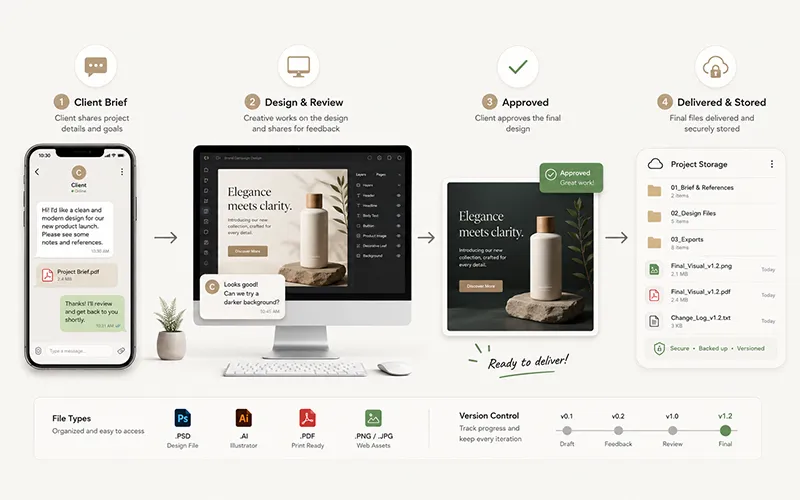
Messaging apps are excellent transfer tools.
They are not ideal long-term project archives.
A freelancer may send a preview image through chat for quick client approval. That is convenient.
But final deliverables, source files, invoices, and important project documents should live somewhere more structured.
A useful model is:
Chat → temporary transfer
Cloud or project storage → permanent record
multilingual desktop messaging workflow
This prevents a final file from becoming buried beneath weeks of conversation.
It also reduces problems when:
- a device is replaced;
- a conversation becomes difficult to search;
- a collaborator leaves;
- the client requests an old version;
- a project needs to be archived.
Messaging should support the project repository, not replace it.
Use Translation Carefully
Machine translation can be extremely helpful in multilingual work.
It is useful for:
- understanding the general meaning of a message;
- reviewing casual communication;
- screening content quickly;
- checking unfamiliar terminology.
However, some project information deserves human verification.
Be especially careful with:
- contracts;
- pricing;
- project scope;
- deadlines;
- usage rights;
- final approvals;
- legal language;
- public-facing copy.
A translation that is “close enough” for casual conversation may not be precise enough for a client agreement.
For critical information, confirm the intended meaning directly.
Standardize Important Terms Across Languages
Creative teams often assume everyone understands words such as:
- draft;
- revision;
- approved;
- final;
- source file;
In multilingual teams, these terms can carry slightly different expectations.
For example, one person may interpret “approved” as:
“I have seen it.”
Another may interpret it as:
“This is the final version and no more changes are required.”
That difference can create expensive mistakes.
Teams should agree on the meaning of important workflow terms.
A short bilingual glossary can be surprisingly useful for recurring projects.
Control Notifications by Client Priority
Not every conversation deserves the same interruption level.
A freelancer may have:
- one urgent active client;
- two ongoing projects;
- several professional communities;
- personal chats;
- promotional channels.
If every conversation sends the same type of notification, important messages become harder to notice.
A more useful structure is based on business priority.
High priority
Active clients with short deadlines or urgent approvals.
Medium priority
Ongoing projects that need regular attention but not immediate response.
Low priority
Communities, optional groups, and general discussion.
The priority should come from the project context, not from how many messages a group generates.
A noisy community is not necessarily more important than a quiet client conversation.
Protect Client Privacy on Desktop
Desktop communication creates privacy risks that are easy to overlook.
Freelancers often work from:
- coworking spaces;
- shared studios;
- cafés;
- client offices;
- home offices;
- temporary travel locations.
A notification preview may reveal:
- client names;
- project details;
- private messages;
- payment information;
- login information.
This matters during screen sharing as well.
Before presenting a design, joining a video call, recording a tutorial, or sharing a desktop with a client, check how notifications appear.

multilingual desktop messaging workflow
Consider:
- hiding message previews;
- muting low-priority groups;
- locking the workstation when leaving;
- closing unrelated client conversations;
- checking what is visible during screen sharing.
Good privacy habits are part of professional communication.
Review Cross-Device Sessions
Freelancers often use more devices than they realize.
A single account may be connected to:
- a studio desktop;
- a personal laptop;
- a phone;
- a tablet;
- a temporary browser session.
Over time, some devices stop being used but remain connected.
Review active sessions periodically, especially after:
- replacing a laptop;
- selling a phone;
- travelling;
- using a shared computer;
- working from a temporary studio;
- borrowing another device.
If a device is no longer part of your workflow, remove its session.
Cross-device access is useful only when the connected devices are still under your control.
Configure the Language After the Desktop Environment Is Established
Once the approved desktop client is installed and working, configure the interface language for the person using it. The interface language, the language used in client conversations, and the language of project documents can remain different.
Menu wording and settings locations can vary across Windows, macOS, mobile apps, and web clients, so onboarding notes should describe the function being changed rather than rely only on an exact button position or screenshot.
For a focused reference on interface terminology and localization, the Telegram Chinese language setup guide can be used as a supplementary resource. It should be treated as an independent guide, not as proof of software ownership or a substitute for source verification.
For multilingual teams, bilingual function names are more durable than instructions such as “click the third button.” For example: Notifications (通知), Privacy (隱私), Storage (儲存), and Devices (裝置). This makes internal guidance easier to follow across language preferences and less fragile when the interface changes.
Build a Five-Minute Freelancer Communication Setup
Before starting a new client project, spend a few minutes defining the communication workflow.
A simple checklist can include:
- Confirm the preferred communication language.
- Confirm which desktop and mobile devices will be used.
- Create a clear client or project conversation structure.
- Define notification priority.
- Decide where permanent project files will be stored.
- Agree on important bilingual terminology.
- Protect sensitive notification previews.
- Review active device sessions.
- Confirm how final approvals will be recorded.
- Decide where final deliverables will be archived.
This small amount of planning can prevent many communication problems later.
When a Creative Team Grows Beyond One Freelancer
A solo freelancer can rely on personal habits.
A team cannot.
Once a project involves:
- designers;
- editors;
- translators;
- assistants;
- developers;
- account managers;
the communication system needs shared rules.
Teams should standardize:
- language conventions;
- naming rules;
- file locations;
- notification priorities;
- project ownership;
- access permissions;
- approval terminology.
The larger the team becomes, the more valuable consistency becomes.
A multilingual workflow should not depend on one person remembering how everything is organized.
Final Thoughts
For freelancers and creative teams in Hong Kong, Taiwan, and other multilingual environments, communication becomes easier when language, device, and project context remain separate. Desktop messaging can anchor deeper client work while mobile stays useful for quick access.
The most effective workflow combines:
- a comfortable interface language;
- clear client-based organization;
- structured file naming;
- permanent project storage;
- controlled notifications;
- careful translation;
- privacy protection;
- regular session reviews.
The best setup is not the one with the most features; it is the one that keeps creative work from becoming a search through old chats.
Frequently Asked Questions
1. What is a multilingual desktop messaging workflow?
A multilingual desktop messaging workflow is a structured way to manage client and team communication across different languages, devices, and projects.
2. Why is multilingual communication important for freelancers?
It helps freelancers work smoothly with clients and collaborators who use different languages, while reducing confusion and communication errors.
3. Should freelancers organize chats by language or client?
It is usually better to organize conversations by client or project rather than language. This keeps project information easier to find.
4. Is desktop messaging better than mobile messaging for freelancers?
Desktop messaging is generally better for detailed project discussions, while mobile messaging is useful for quick replies, notifications, and communication while travelling.
5. Can Windows and messaging apps use different languages?
Yes. A freelancer can keep Windows and creative software in English while using Traditional Chinese for messaging and communication.
6. How should freelancers manage files shared through messaging apps?
Messaging apps can be used for temporary file transfers, but important deliverables, source files, invoices, and project documents should be stored in a structured cloud or project storage system.
7. Is machine translation safe for client communication?
Machine translation can help with general communication, but contracts, pricing, deadlines, legal terms, and final approvals should be checked carefully for accuracy.
8. How can freelancers protect client privacy on desktop?
Freelancers can hide notification previews, mute unnecessary groups, lock their workstation, close unrelated conversations, and review connected devices regularly.